ONESOURCE
Workpapers Help
Manage Workpaper Notes
You can add notes to provide supplementary information about workpapers.
The following sections explain how to:
View Notes
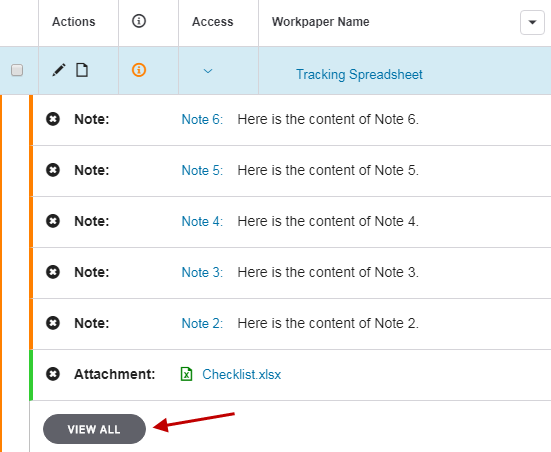
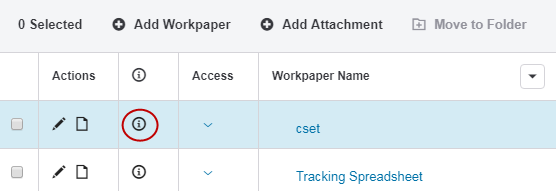
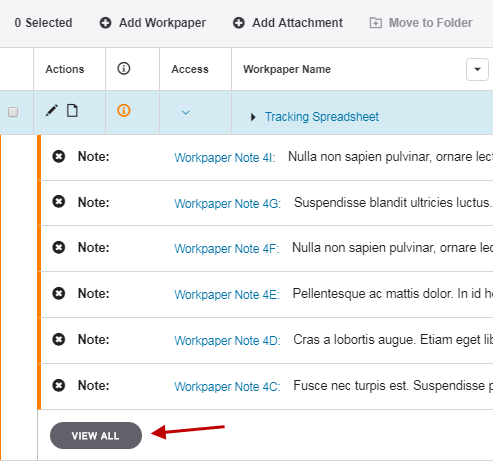
Select the information icon in the Workpapers grid to see a list of notes and attachments.

If you have more than a combined total of six notes and attachments, select VIEW ALL to open a new window containing a complete list.
Add Notes
To add a note:
- Select the Note icon in the Actions column.

- Enter values in Note Title and Note.

- Select Save.
Edit Notes
Workpapers lists up to a combined total of six notes and attachments in its primary list under the information icon. If you have more than six, a pop-up is available with a secondary list containing a complete set of notes and attachments.
Notes in the Primary List
To edit notes in the primary list:
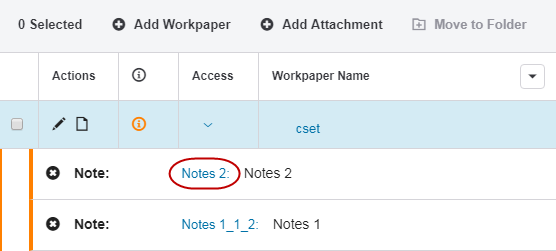
- Expand the list of notes and attachments by selecting the information icon.
- Select the note title.
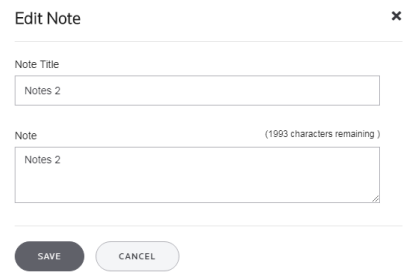
- Make changes in Note Title or Note, and then select Save.
Notes in the Secondary List
Use the secondary list if you do not see your note in the primary list:
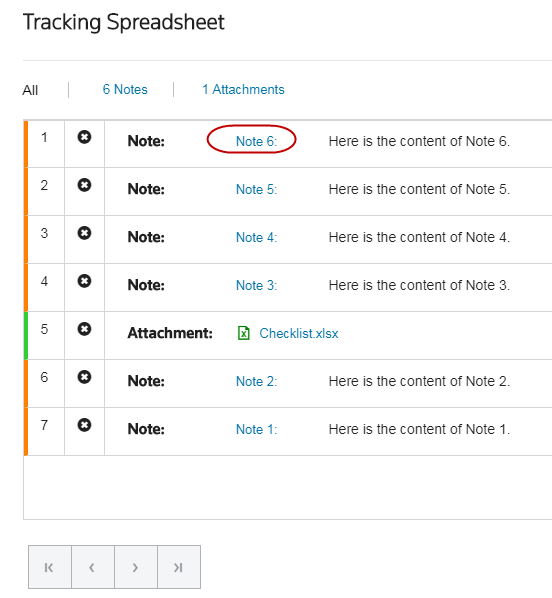
- Select VIEW ALL.
- Select the note title.
If you do not see your note, scroll through the pages.
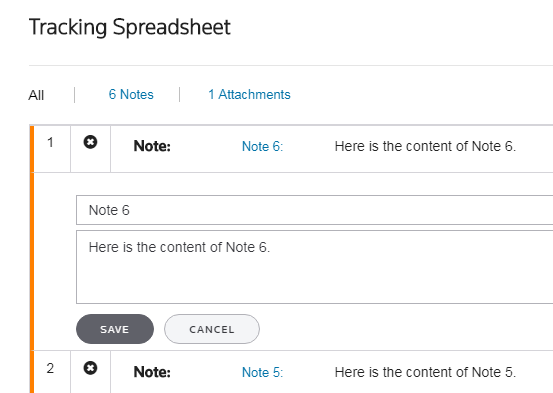
- Make changes to the title or the note body, and then select SAVE.
- Select CLOSE.
Delete Notes
To delete a note:
- Expand the list of notes and attachments by selecting the information icon.
- Select the
 icon.
icon.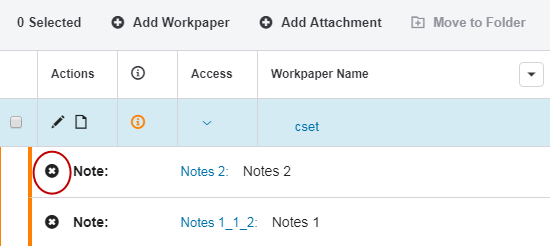
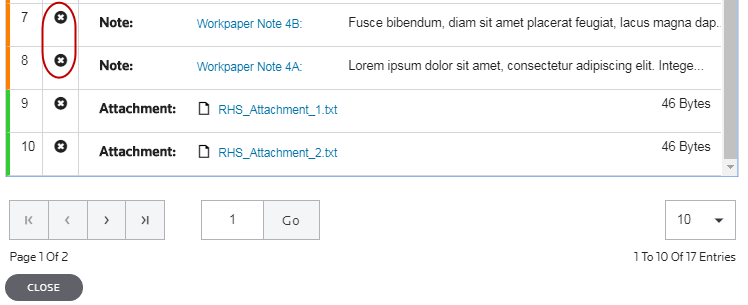
If you do not see the note in the grid that you want to delete:
- Select VIEW ALL to see a complete list of notes
- Select the icon for the notes you want to delete.